Key Bindings
Key Bindings allow you to control Cabby's master output volume using keyboard shortcuts or gamepad buttons during your flight. This is useful when you need to quickly adjust the volume without switching windows - for example, when communicating with ATC or during critical flight phases.
Accessing Key Bindings
Navigate to Settings > Key Bindings to access the key bindings configuration page.
Creating a Key Binding
To create a new key binding:
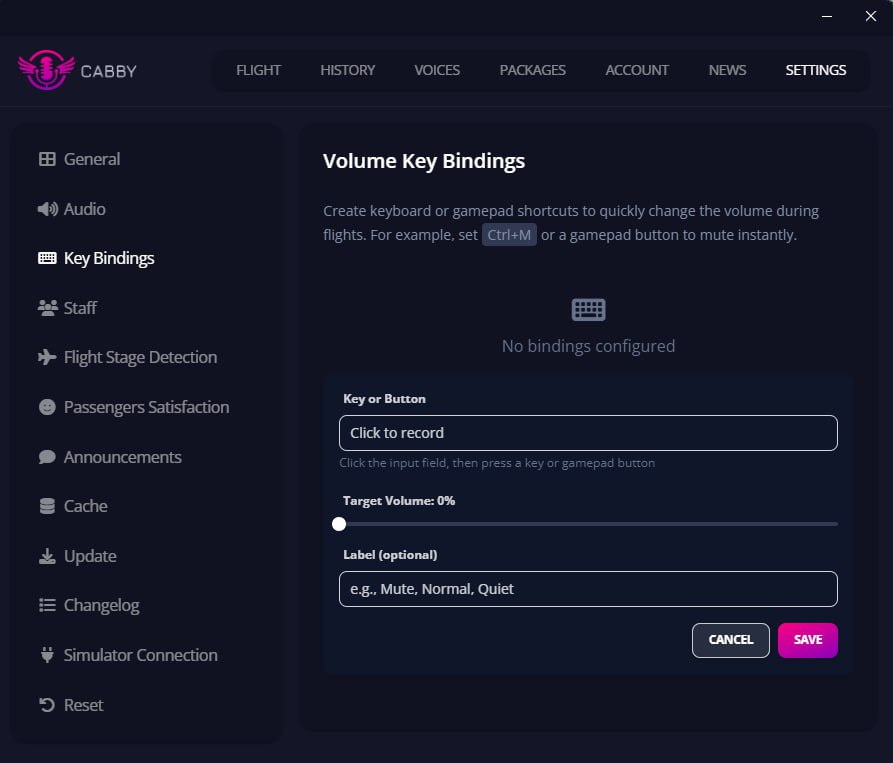
- Click on Click to record and press the key or gamepad button you want to use
- Set the desired volume level using the slider
- Name your binding (optional)
- Click Save to confirm the binding
How It Works
When you press the bound key or gamepad button, the master output volume will be set to the level you configured for that binding. This allows you to create multiple bindings for different volume presets - for example, one binding for 50% volume during ATC communications and another for 100% during cruise.
Managing Existing Bindings
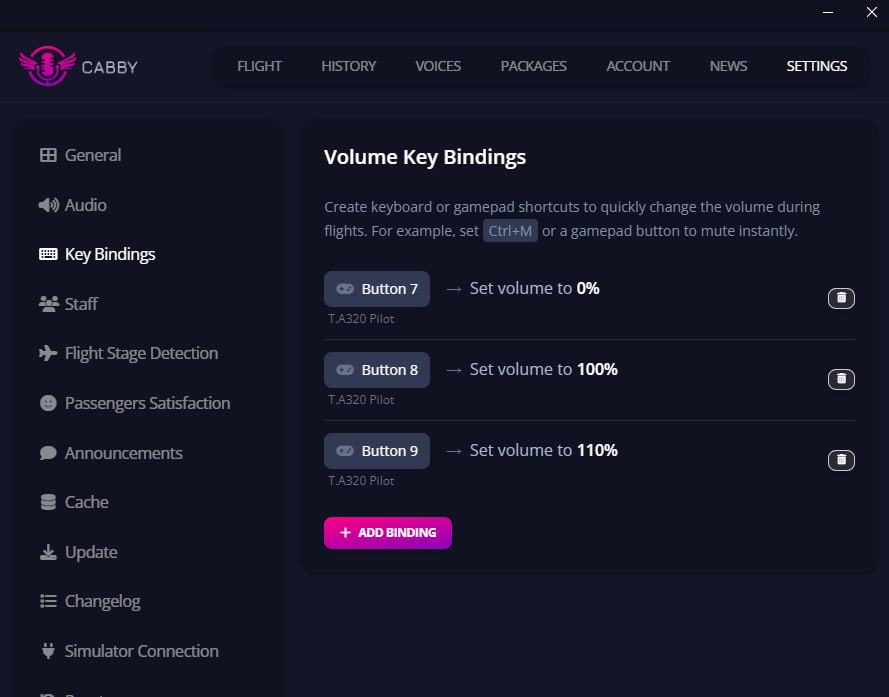
All your created bindings are displayed in a list showing:
- The assigned key or button
- The volume level it sets
- Option to delete the binding
Deleting a Binding
Click the delete icon to remove a binding. To change a binding, delete it and create a new one.
Gamepad Support
Key Bindings support gamepad controllers in addition to keyboard input. When creating a binding, simply press a button on your connected gamepad instead of a keyboard key.
Make sure your gamepad is connected before attempting to create gamepad bindings. The binding detection will automatically recognize gamepad button presses.
Tips
- Avoid conflicts: Make sure your Cabby key bindings don't conflict with your simulator's controls
- Use modifier keys: Combine keys like Ctrl, Alt, or Shift with other keys for more binding options
- Test your bindings: After creating bindings, test them during a flight to ensure they work as expected